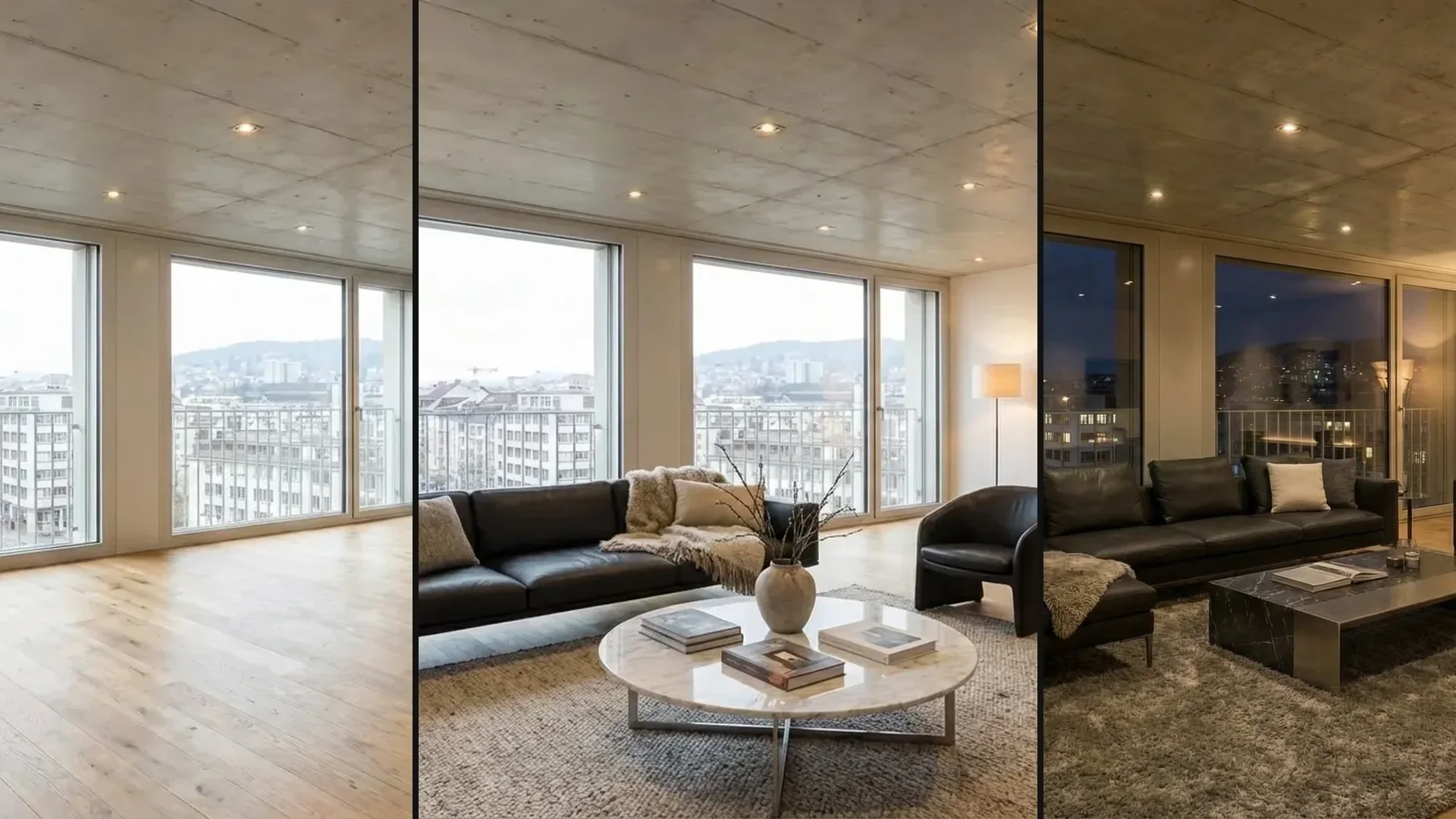
Photo to visualization
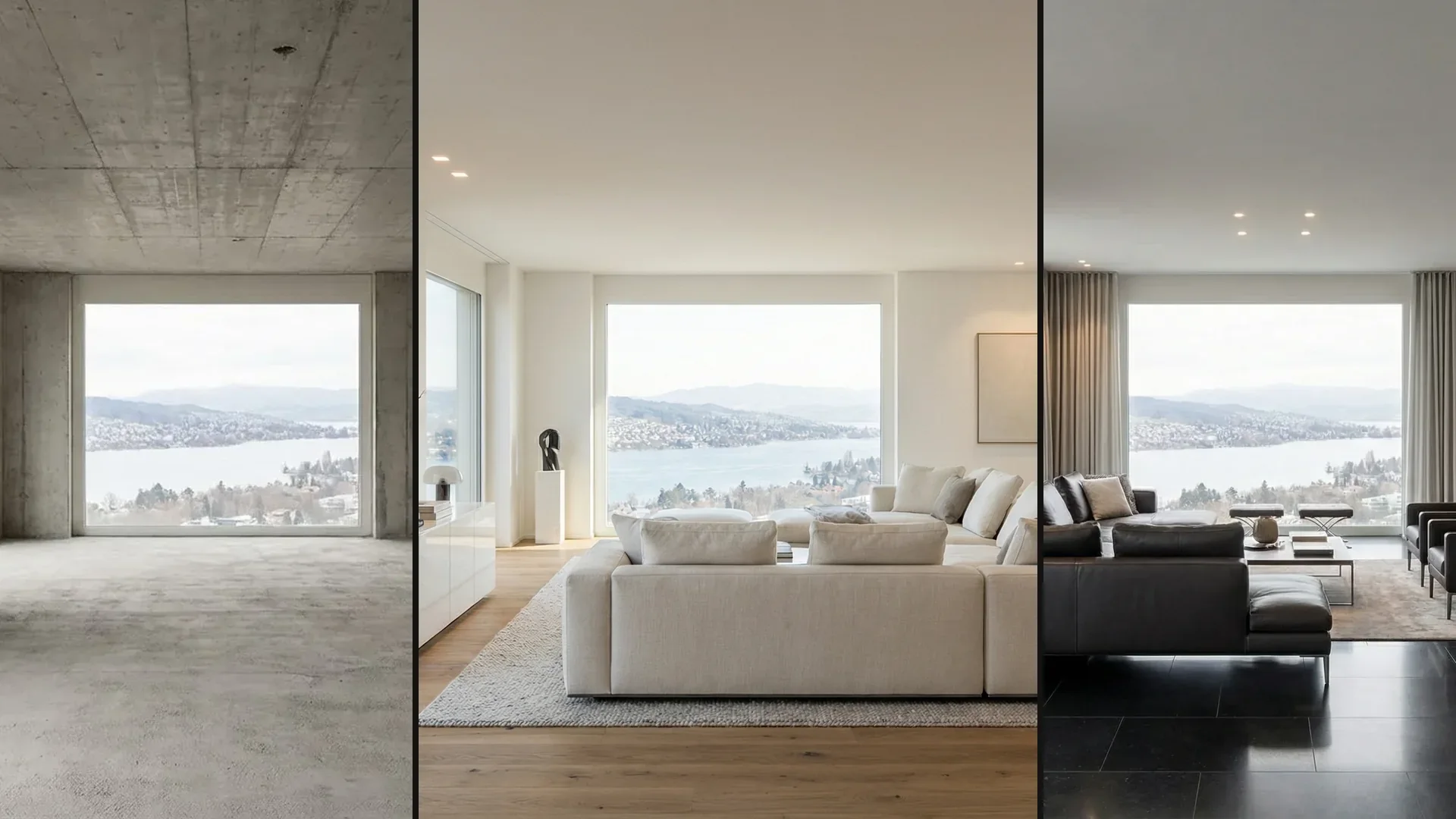
Create two proposals for the finished living space from a photo of an unfinished shell, and show a dark variant from the original photo.
- Level
- Einstieg
- Starting point
- Foto
- Features
- Generieren, Prompt Agent, Anzahl, Verlauf
- Length
- 2:02
What you learn in this video.
A photo of the unfinished shell and a short description are enough for two proposals of the finished living space. The windows, ceiling and view stay the same. A dark variant is then created from the original photo.
Turning a photo into a visualization in 10 steps.
This is how it goes in the video – in the same order in your account.
Input and result.
Input, reference and result in full resolution. Click an image to open it full size.
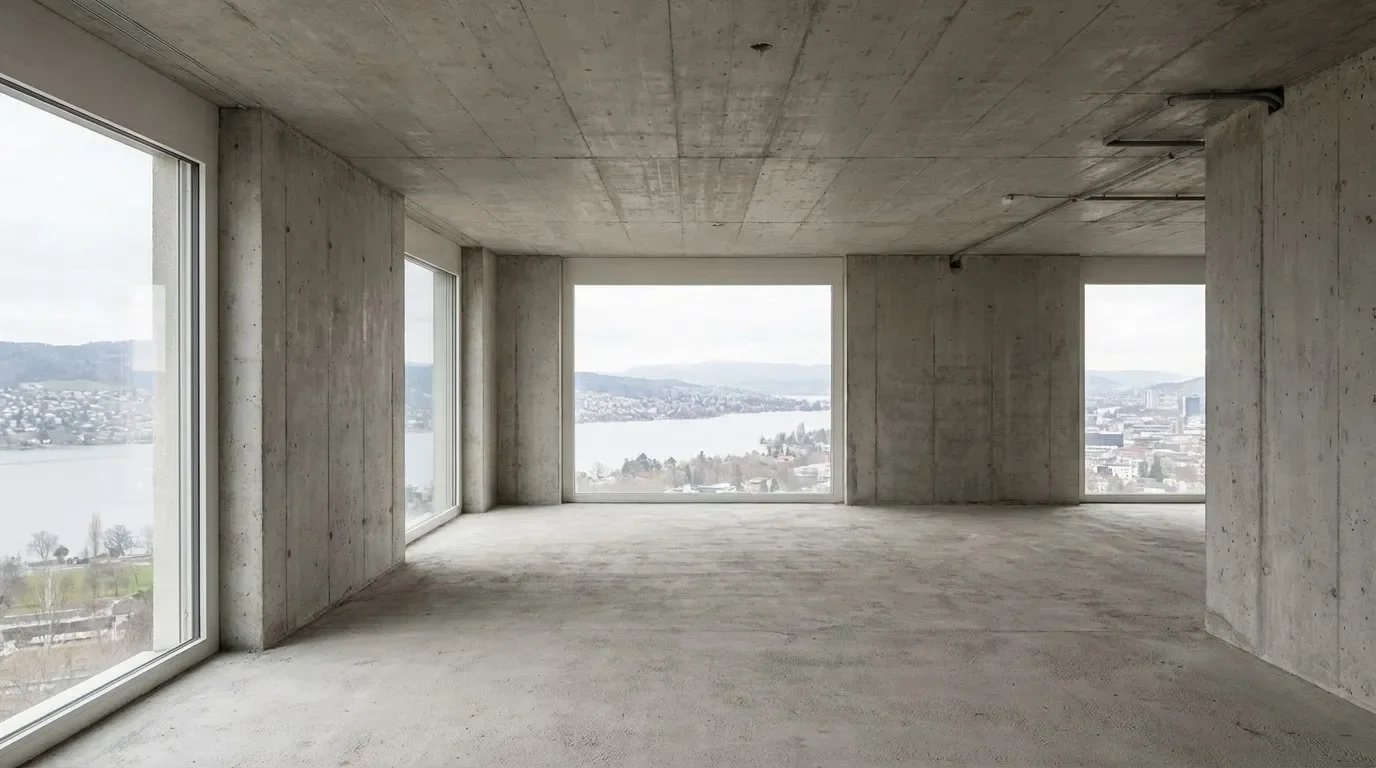
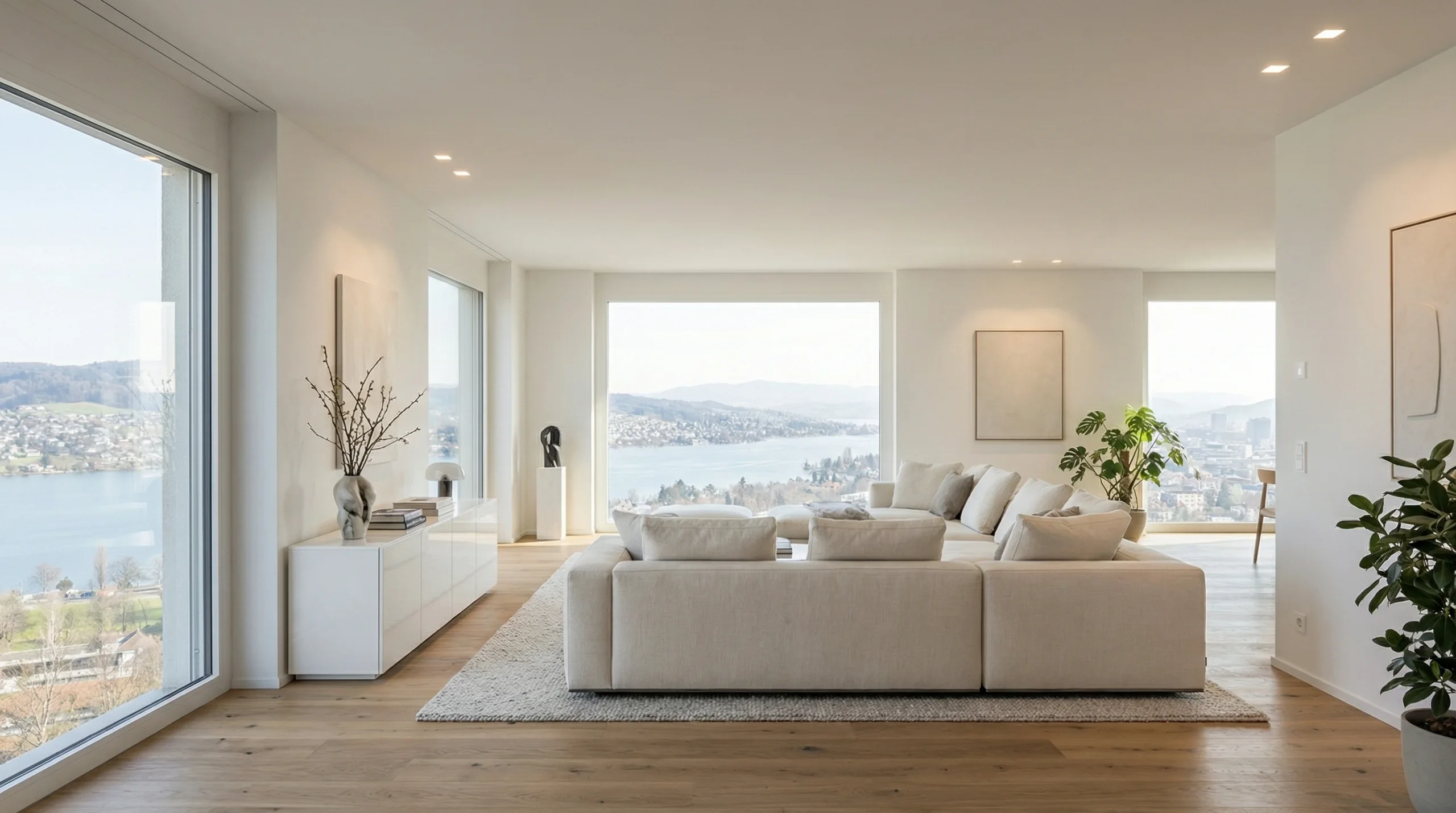
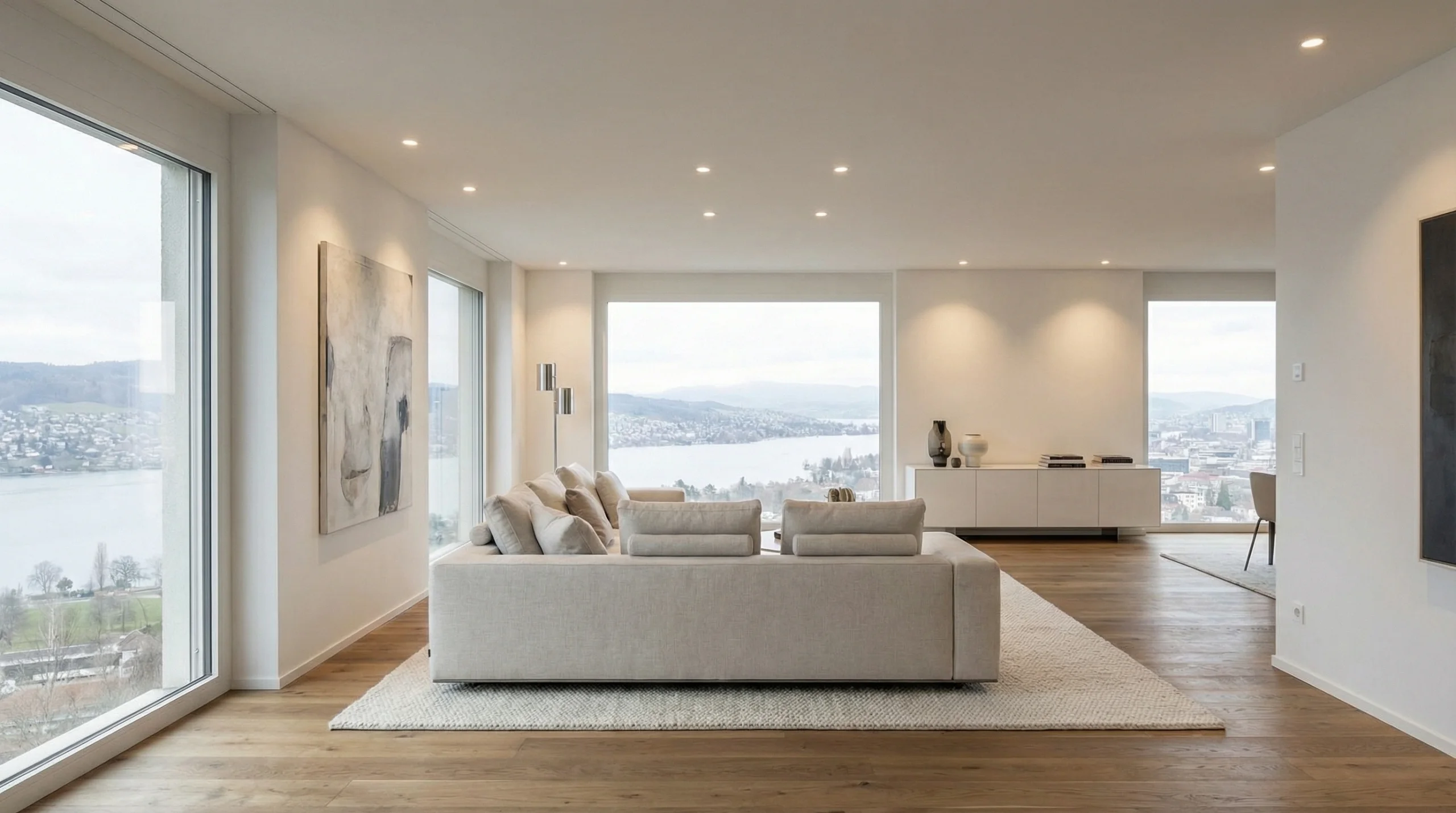
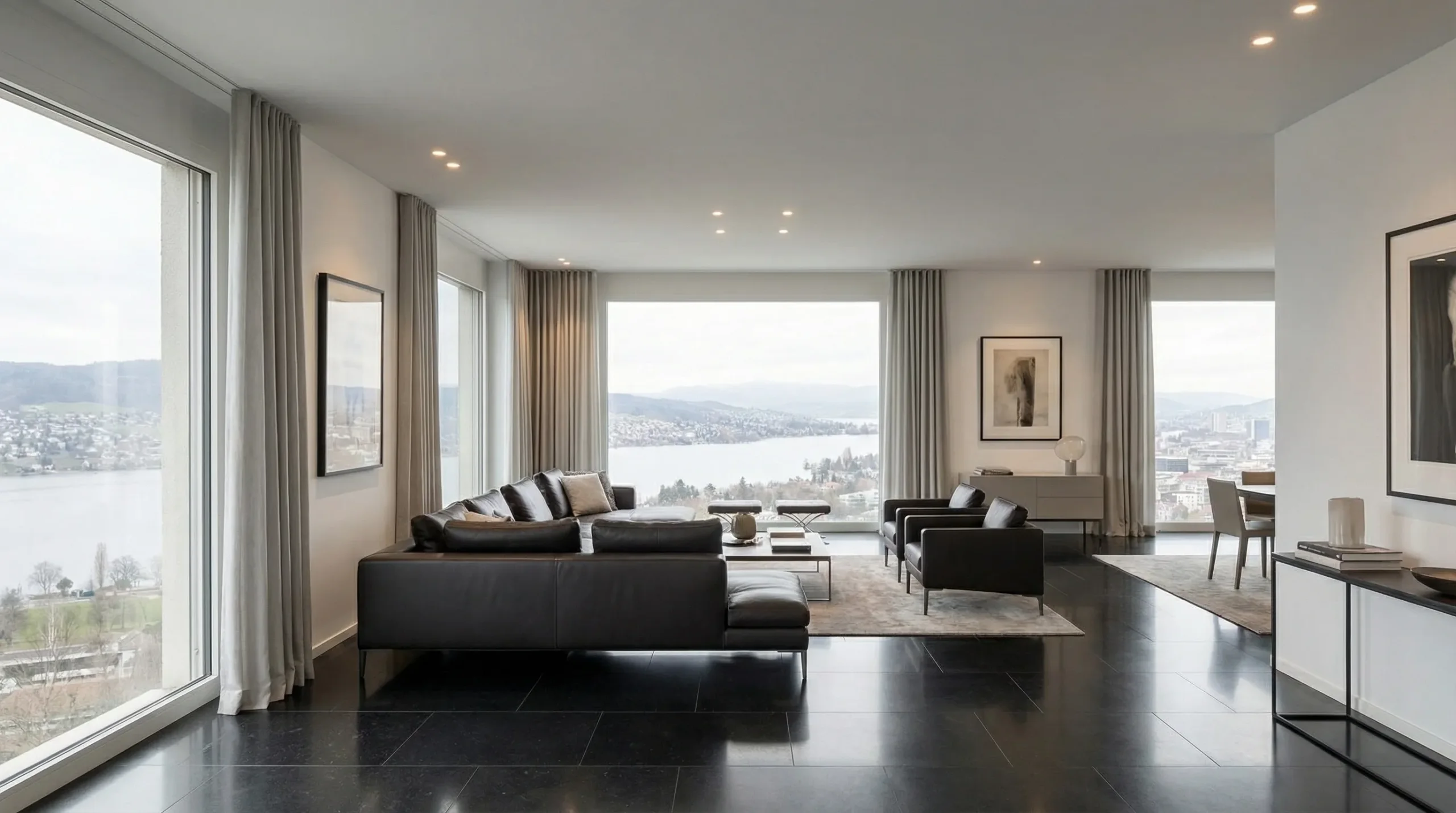
Prompt for turning a photo into a visualization.
Entered exactly like this. Copy it and adjust the location, house and material.
White walls, oak floor, light sofa. Windows and room stay the same.
The Prompt Agent is set to Automatic. When you click Generate, it works this short text into a detailed prompt in the background. Dark variant (typed, from the original photo): “Dark stone floor and black sofa. Windows and room stay the same.”
Tips for better results.
Your text does not have to be perfect: when the Prompt Agent is set to Automatic, it works out your short description when you generate.
If you want to develop the prompt yourself, open the Prompt Agent with one click. There is a separate video on this.
Set the number to two images. This gives you two proposals to choose from right away.
For a completely different variant, go back to the original photo in History. Each further edit builds on the last image, and with each step the quality can drop slightly.
TranscriptTranslated from the German voiceover. click a timestamp to start the video there
Questions about turning a photo into a visualization.
Upload the photo, briefly describe the finished room and state that the windows and room stay the same. With the number set to two, you get two proposals.
Related videos and features.
The feature in detail and the next videos.
Floor plan to 3D view
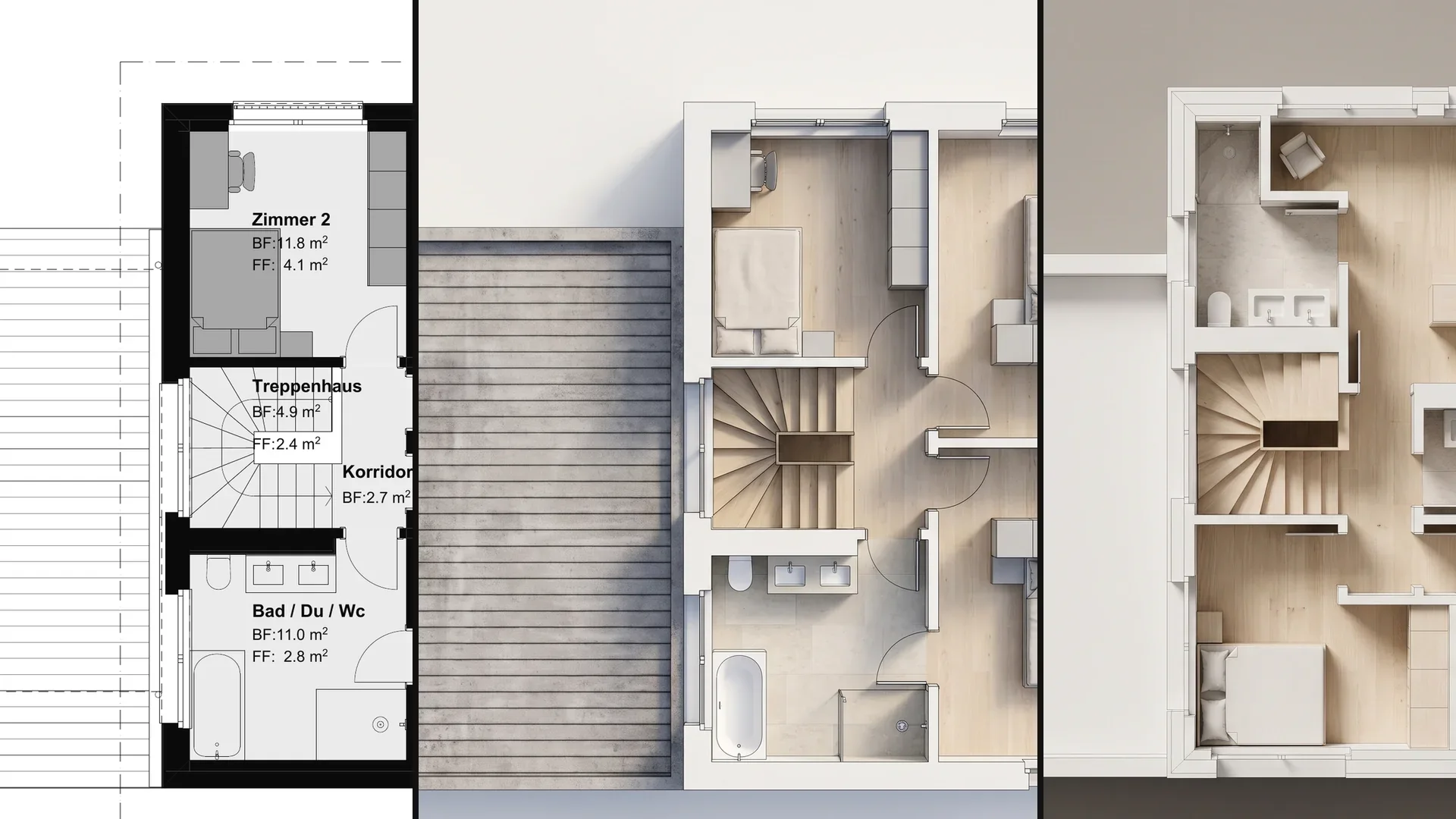
Create a furnished top view from a floor plan and also show the same plan as an architectural model in wood.
Room design
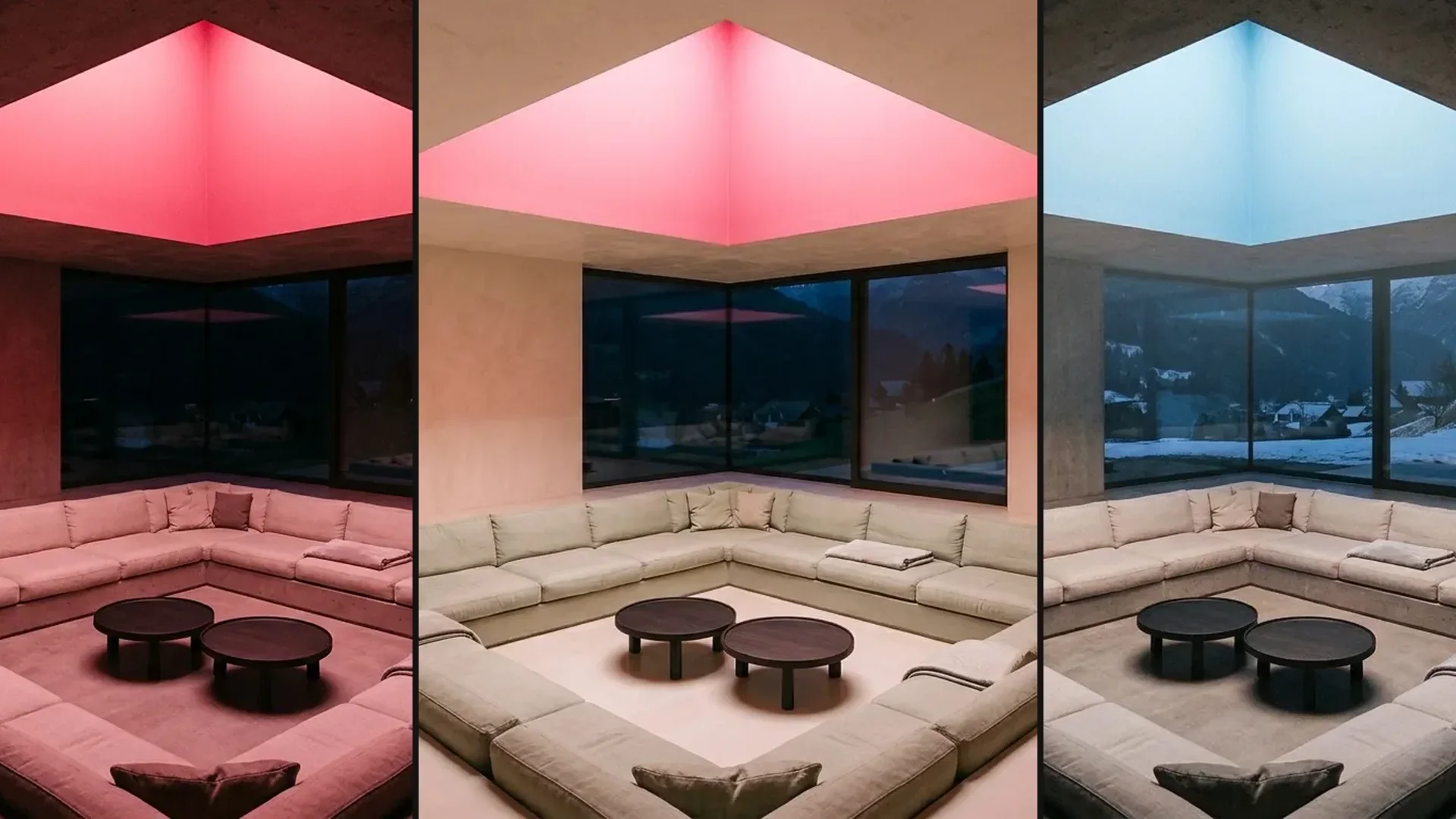
Give a room a new style without changing the architecture, and show the same room in winter from the original photo.
Virtual staging
Furnish an empty room in a photo, compare two furnishing options and show the chosen variant in the evening and at night.